Page 8 of 8
Compute, Verify, Refine
Compute
- Hit Compute
(you should have the Scenarios dialog or the Compute Center dialog open (because it's vital to know which Scenario is current (and certain Compute buttons will change the Current Scenario (a bug)))).

The Executive Summary has a Storage tab listing important volume and flow values.
Verify
You can and should have some graphs open to quickly evaluate results.
Discharge Curves
|
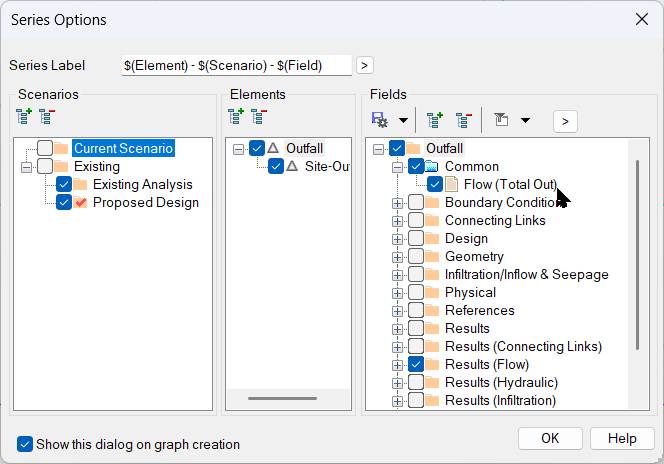 |
The Pre- and Post-Development Discharge Curves are graphed:

Check the Pond
|
 |
Zero Pond Overflow is good!

You can rapidly try different outfall numbers, hit Compute, and see the graphs update automatically.